Schedulon - Booking Procedure
Instructions
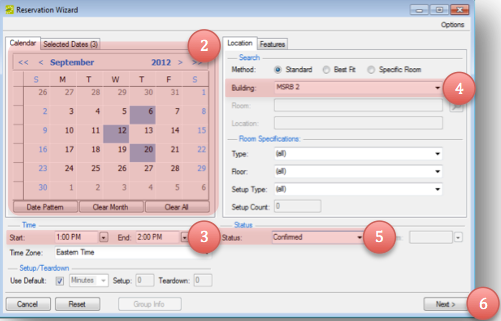
- Click the Wizard button at the top of the screen.

- Use the calendar area to select the dates you would like to use for the room.
- Select a start and end time.
- Select a building.
- Select a status.
- Click Next.
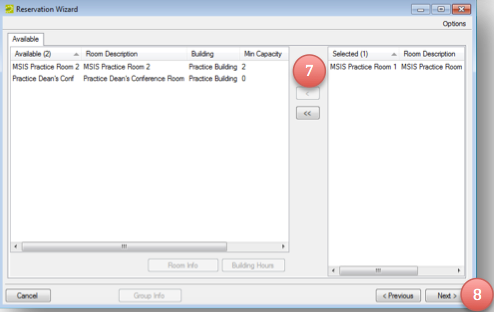
- Select the room by double-clicking the entry on the left.
- Click Next.
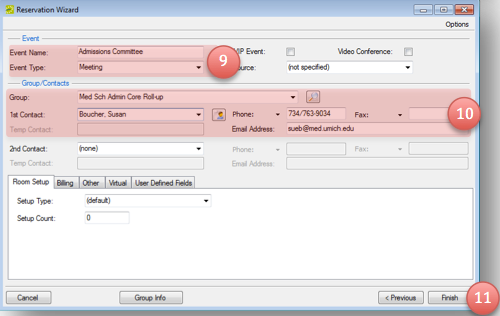
- Give the Event a name and a type. Use event type Private Meeting to hide details from people browsing for space.
- Select a group and either select or fill in a primary contact.
- Click Finish.
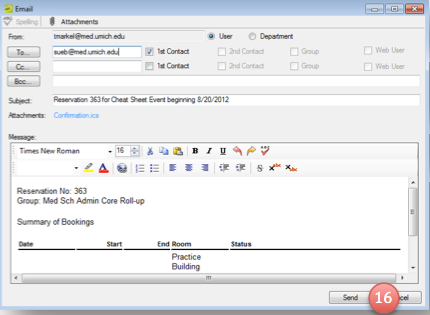
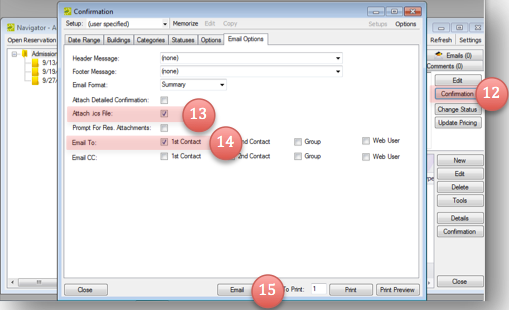
- On the next screen, click Confirmation.
- Verify Attach .ics File is checked.
- Check the Email To: 1st Contact and 2nd Contact, if necessary.
- Click Email.
- Edit the email and click Send.